All eleven screens, shown with the fictional portfolio we test against.
No demo call, no sales gate, no blurred screenshots.
Rowan & Vale Residential is not a real company.
The units, leads, accounts and addresses below are invented. Any screenshot
can be opened at full size.
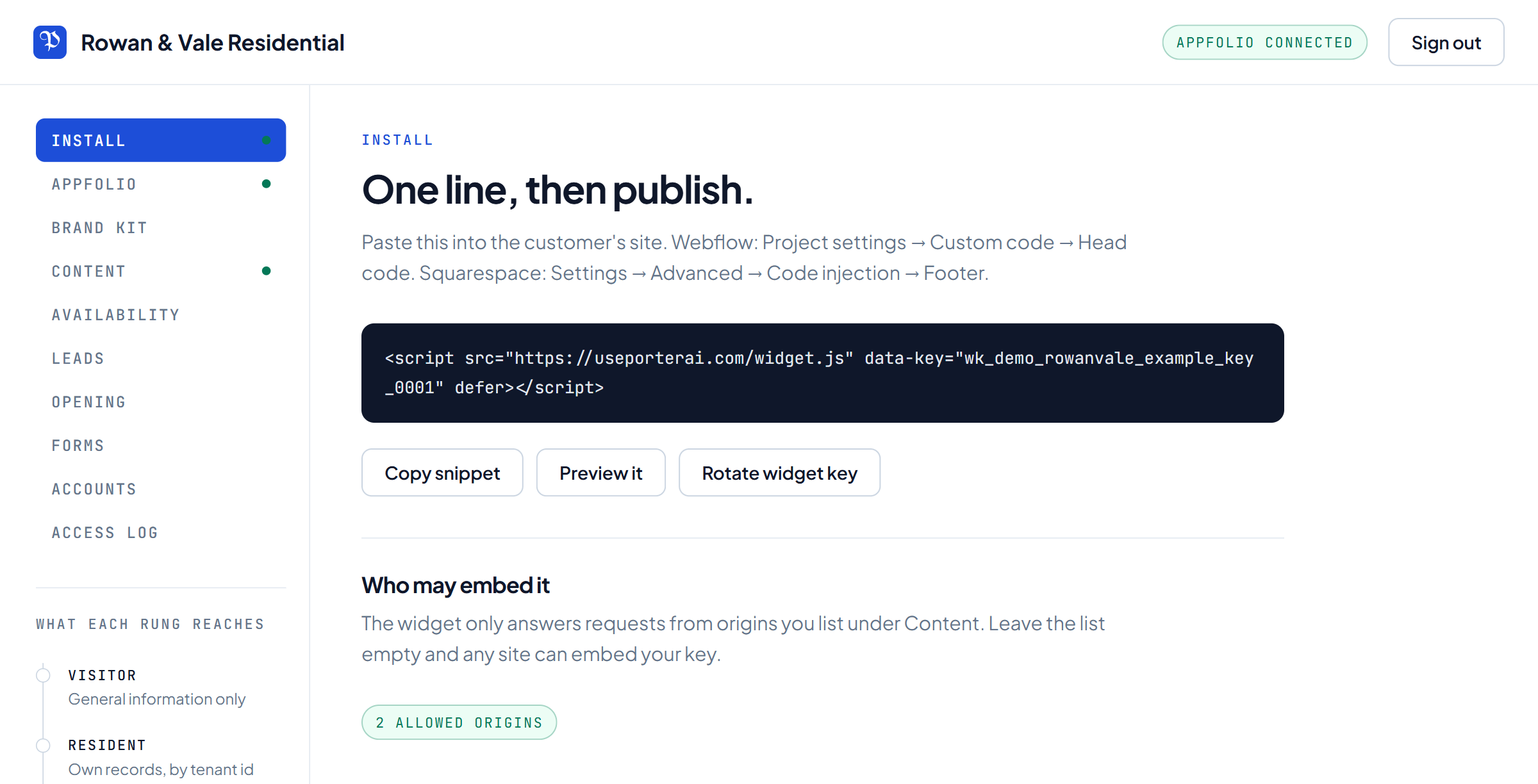
Install
One line of script, and a list of sites.
The snippet is the same for every customer; the key inside it is yours.
It goes into your site's head or footer once — the panel spells out where
to find that in Webflow and Squarespace.
Origins are the other half of it: they name which sites may embed your
key, and a browser on any other site is refused the response. Install
shows the count; the list itself is edited under Content. Leave it empty
and anyone who copies the key out of your page source can run your
assistant on theirs.
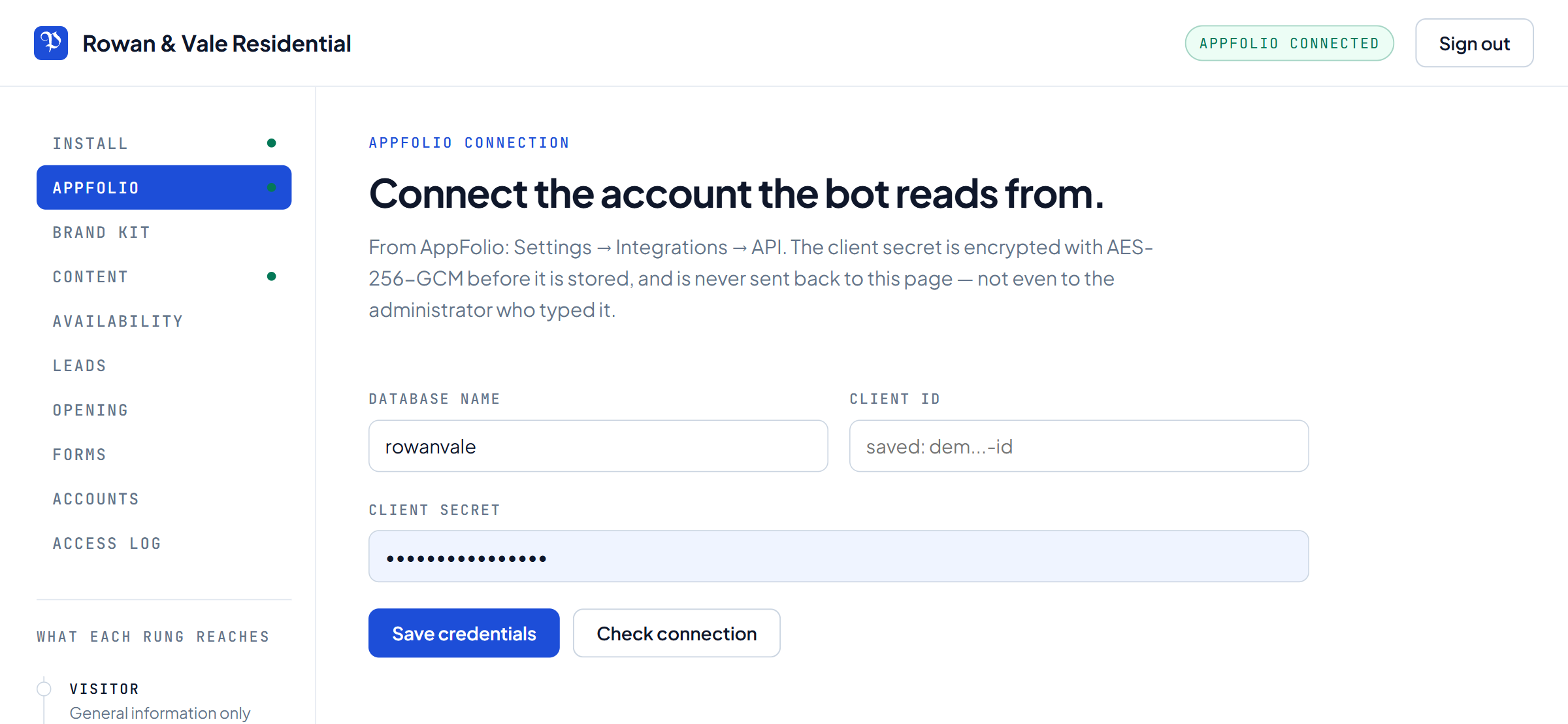
Porter reads your AppFolio through a Reports API credential you create
in your own account. It reads. There is no path in Porter that writes
anything back to AppFolio.
The client secret is encrypted with AES-256-GCM before it is stored, and
it is never sent back to the browser afterwards — not even to the
administrator who typed it. Check connection reports how many of the
reports it needs the credential can actually reach, so a permissions
problem surfaces here rather than in front of a renter.
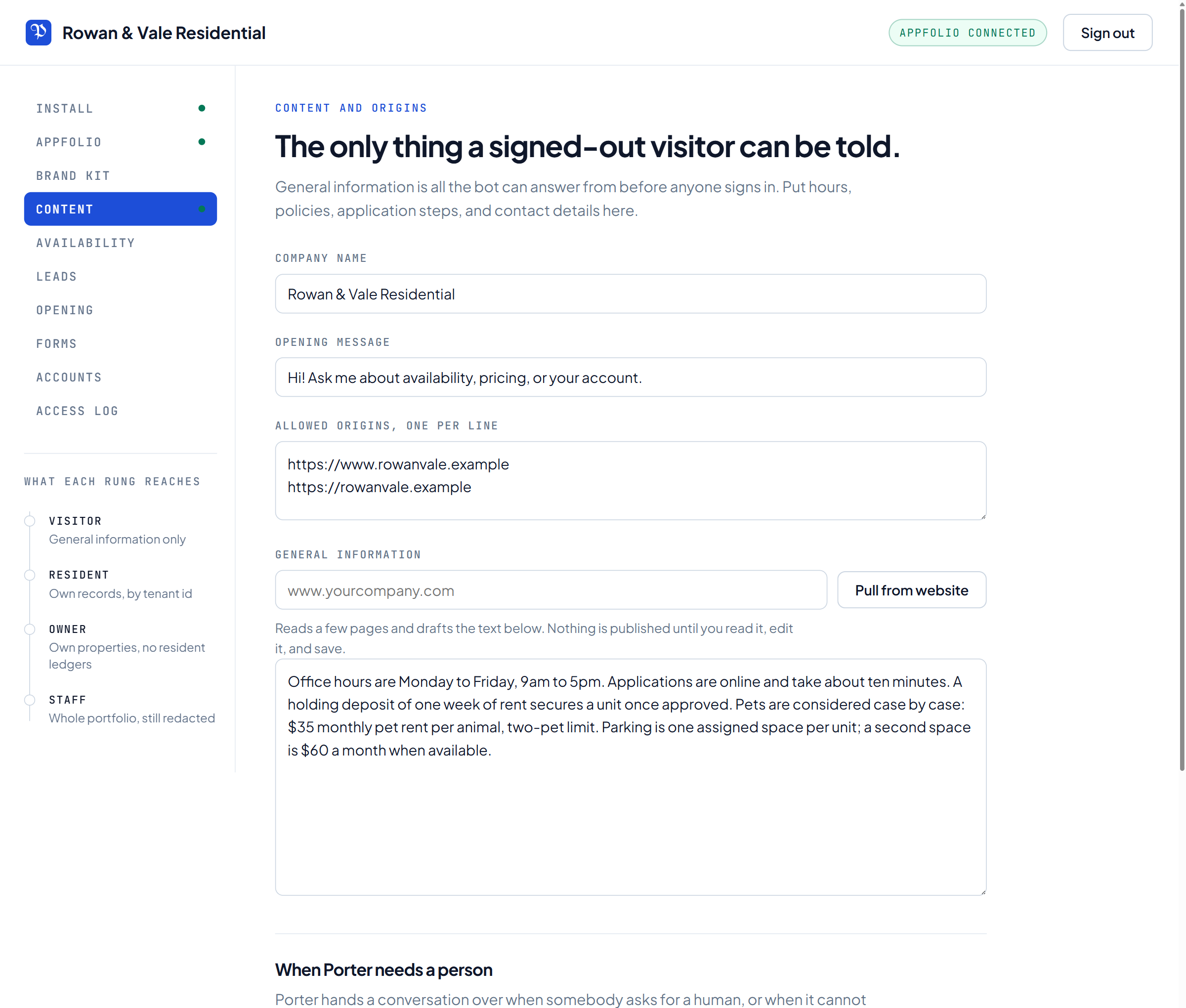
Before anyone signs in, general information is the whole world the
assistant has. Hours, pet policy, application steps, deposits, parking —
the questions that otherwise arrive by phone at half past seven.
Point the importer at your website and it drafts this from your own
pages. Nothing is published from it until you have read it, corrected it
and saved it. The allowed-origins list lives on this screen too.
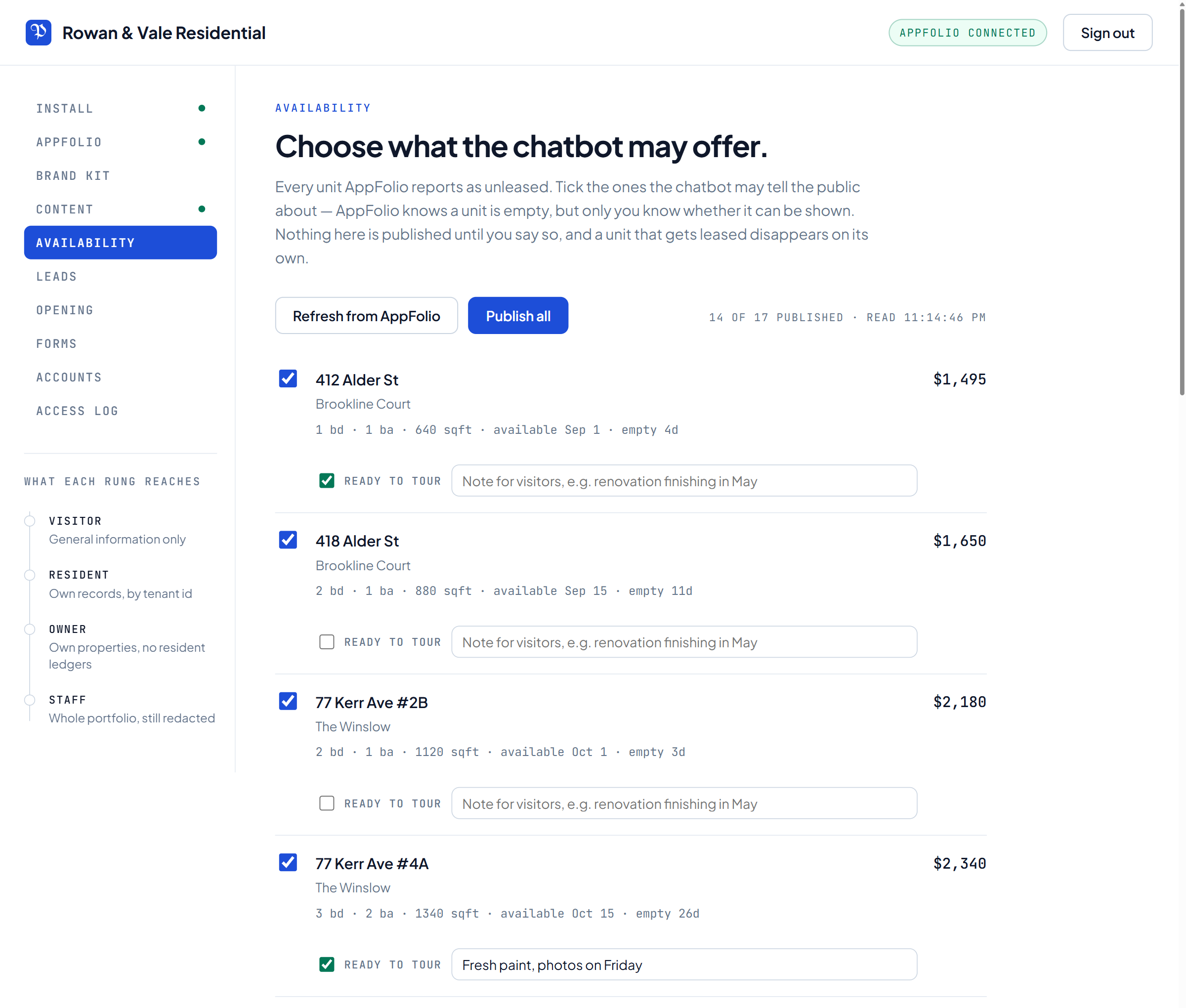
AppFolio knows which units are unleased. It does not know which ones you
want a stranger to hear about — a unit can be mid-renovation, held for a
returning resident, or simply not ready to show. Unleased is an
accounting state, not a marketing one.
So Porter asks. Tick a unit and the assistant may offer it; leave it and
the assistant does not know it exists. Each one also carries a
ready to tour flag and a short note for visitors, so
“available, but photos are coming Friday” is something you
can say rather than something you have to field.
What gets stored is only your decision and any note you wrote, never a
copy of the listing: approval is a gate over live data, so a unit that is
leased in AppFolio drops out on its own and nobody has to remember to
untick anything.
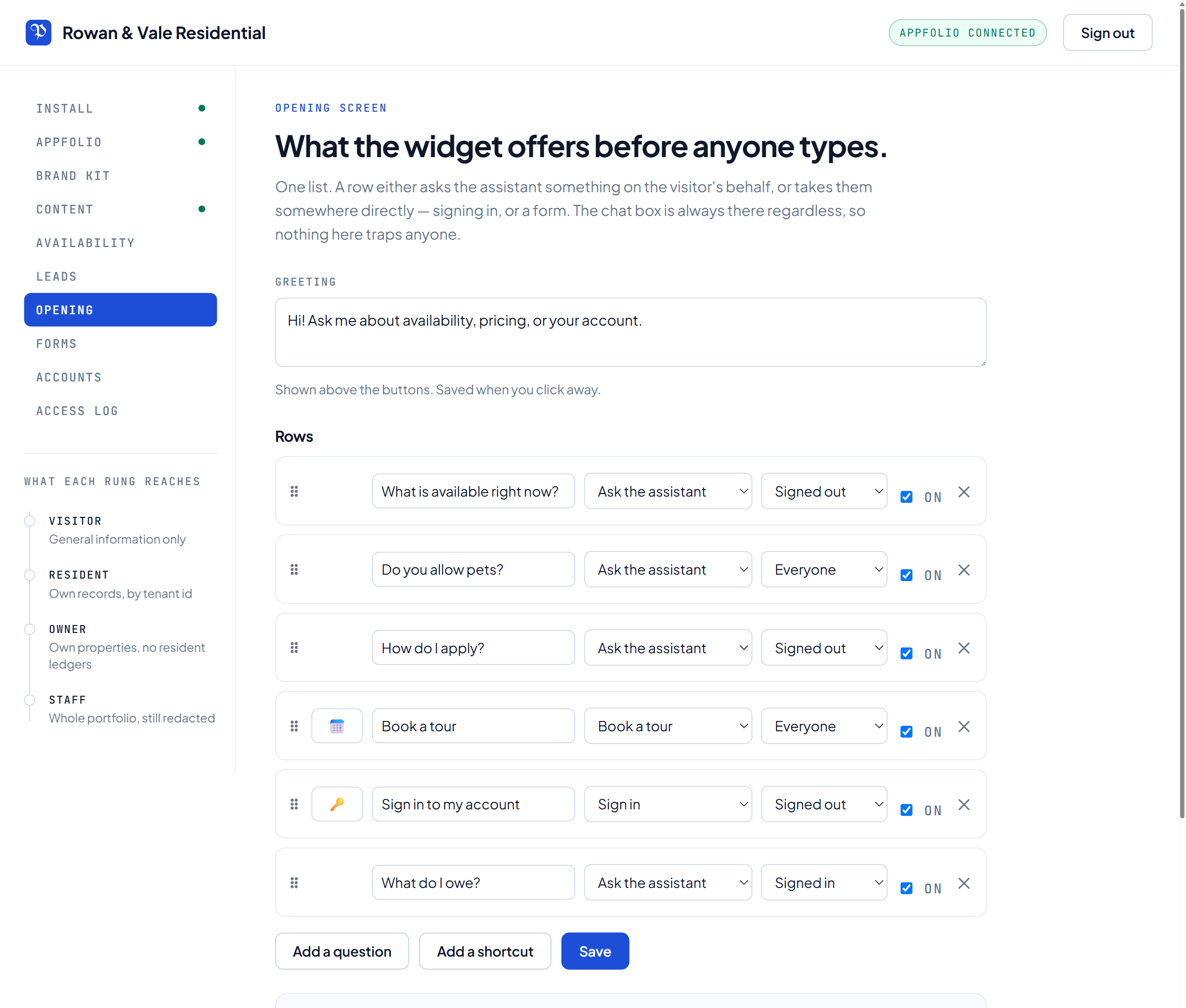
One list decides what a visitor sees first. A row either asks the
assistant something on their behalf, or takes them somewhere directly —
the sign-in card, or a form.
Each row carries an audience, because the distinction is a real one:
what do I owe is meaningless to a stranger, and only appears once
somebody has signed in. The chat box sits underneath the list the whole
time, so nothing here traps anyone inside a menu.
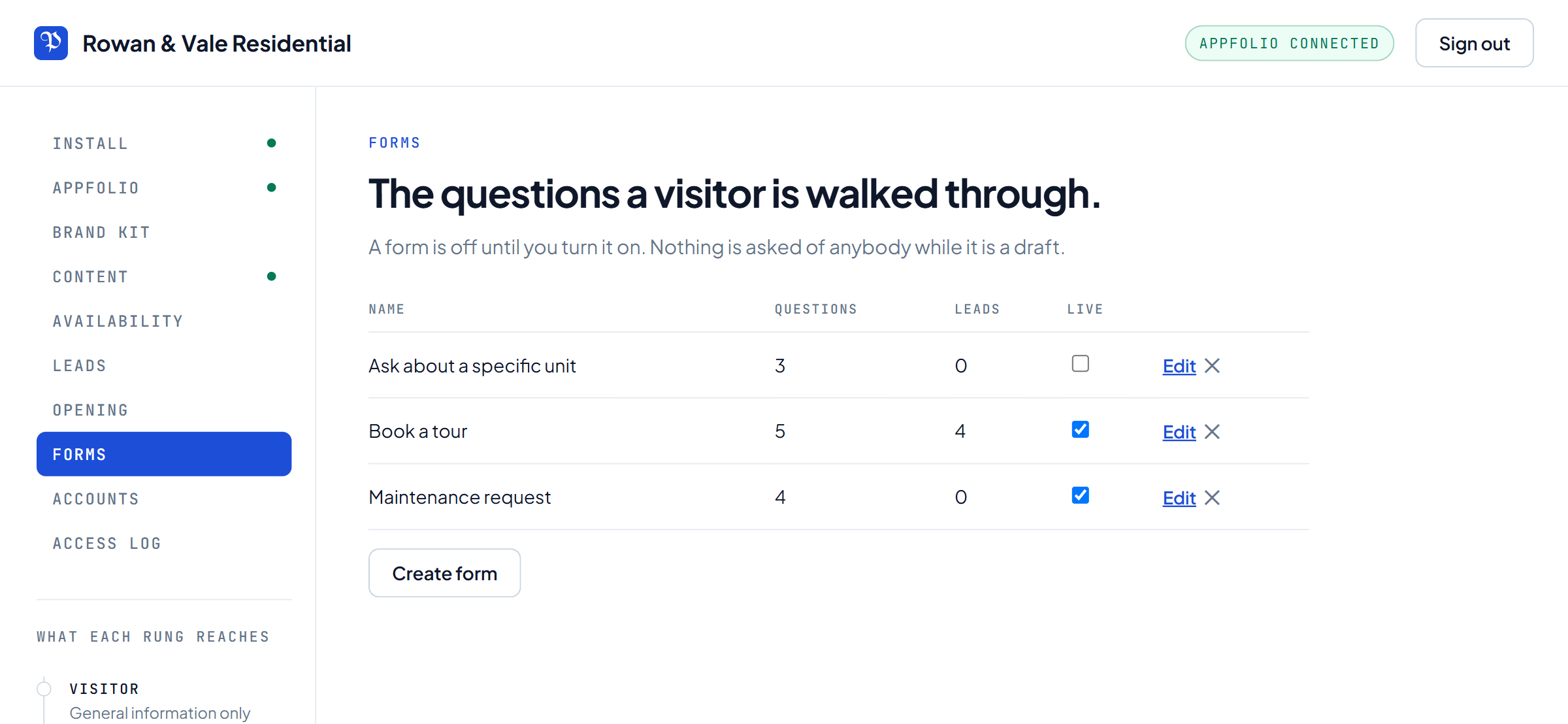
A form is a short sequence of questions the assistant asks one at a
time — a tour booking, a maintenance report, an enquiry about one unit.
Anything completed lands in Leads.
A form is off until you turn it on, and nothing is asked of anybody
while it is a draft, so you can build one over a week without a
half-finished version reaching a renter.
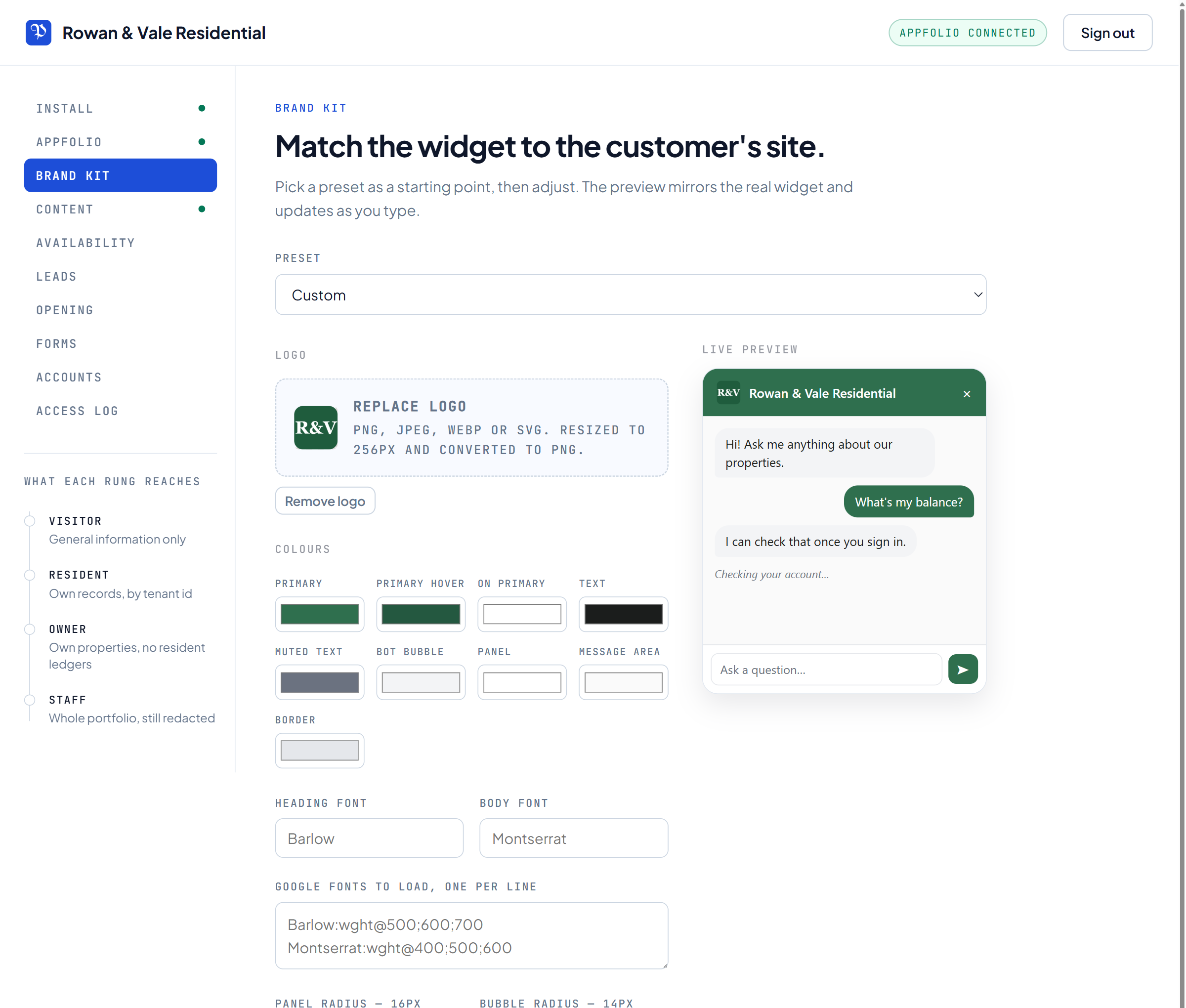
Colours, corner radii, both fonts, and your logo. The panel beside the
fields mirrors the real widget and repaints as you type, so you are not
saving and reloading to see what a colour did.
The sample exchange in it shows the scope rule in force: a question
about an account balance is declined until the visitor signs in.
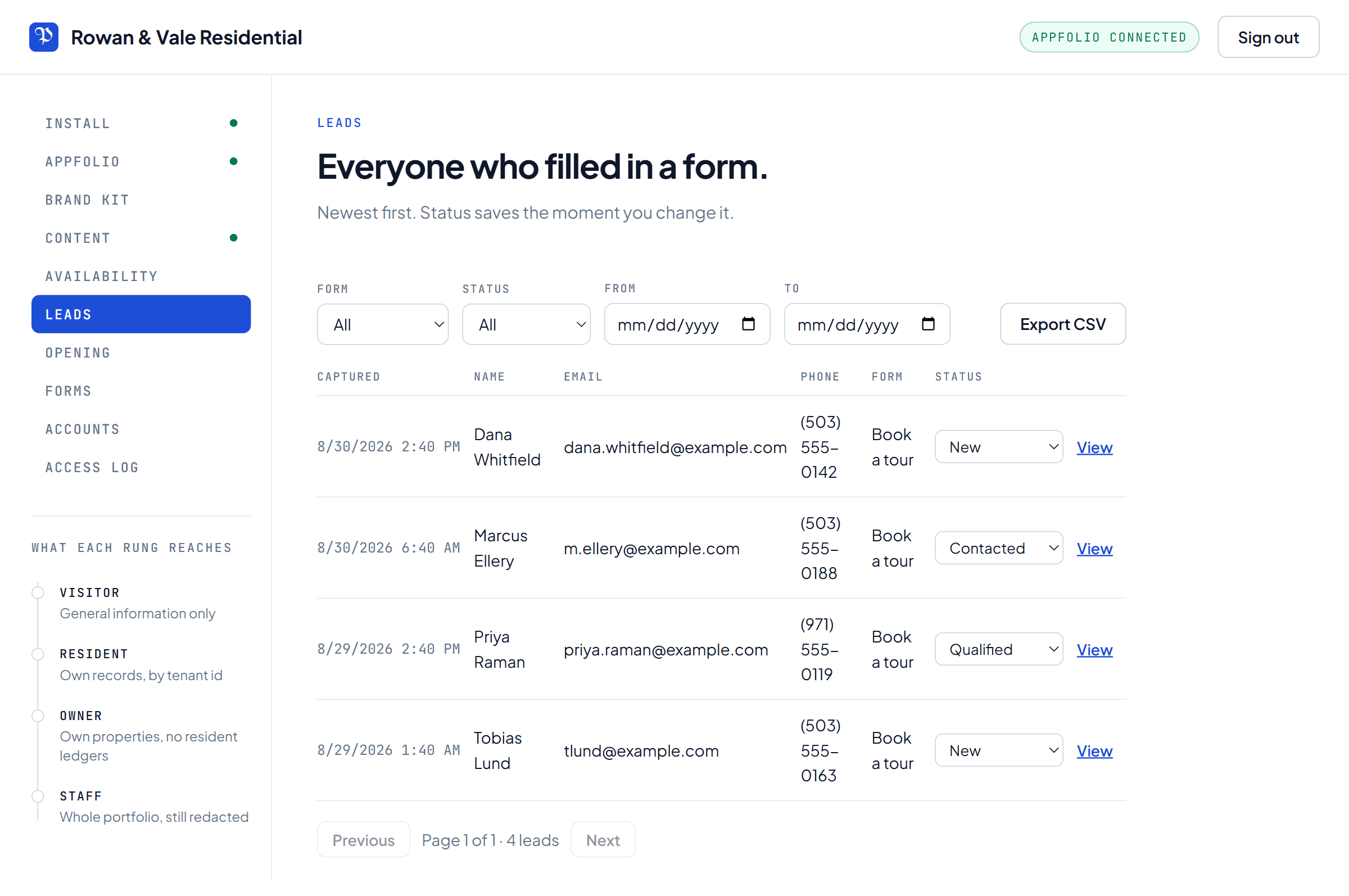
Newest first, with the leasing stage — new, contacted, toured, applied,
leased, or lost — editable in the row, or for many leads at once.
Changing one is the most common thing anybody does here, and it should
not need a detail view. A stage saves the moment you change it, and
every change is kept, so the leasing funnel can count each lead at the
furthest stage it reached.
Filters for form, status and date range sit above the table, and Export
CSV gives you whatever the filter has left.
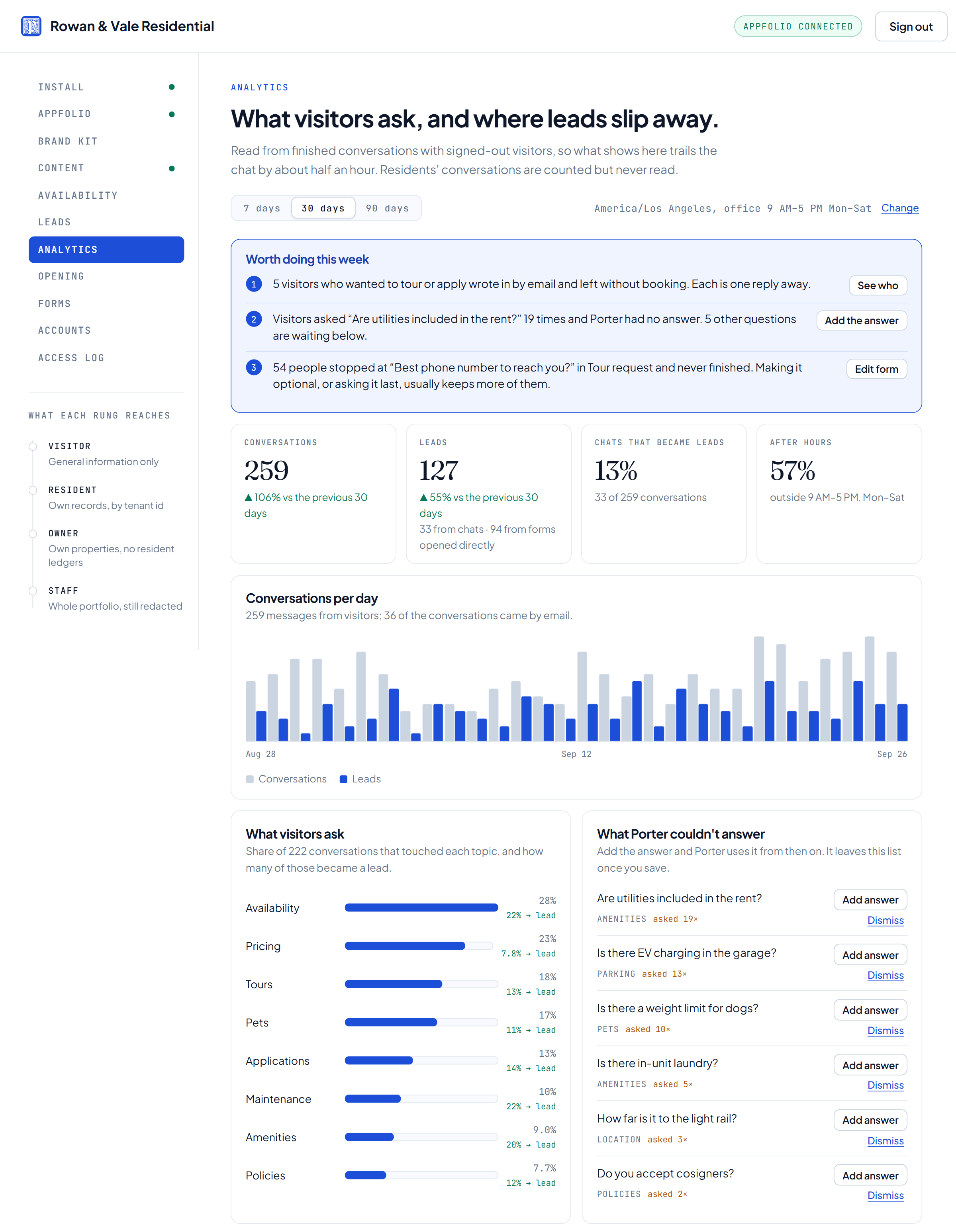
Once a signed-out visitor's conversation has gone quiet, Porter reads it
once and notes what it was about, whether they were ready to tour or
apply, and anything it could not answer. The pane turns that into a short
list of things worth doing this week — each one specific enough to act on
from where you are.
The questions Porter could not answer come with an answer box. What you
type goes into General information, Porter answers it from then on, and
the question leaves the list — or comes back flagged if visitors keep
asking. Residents' conversations are counted but never read.
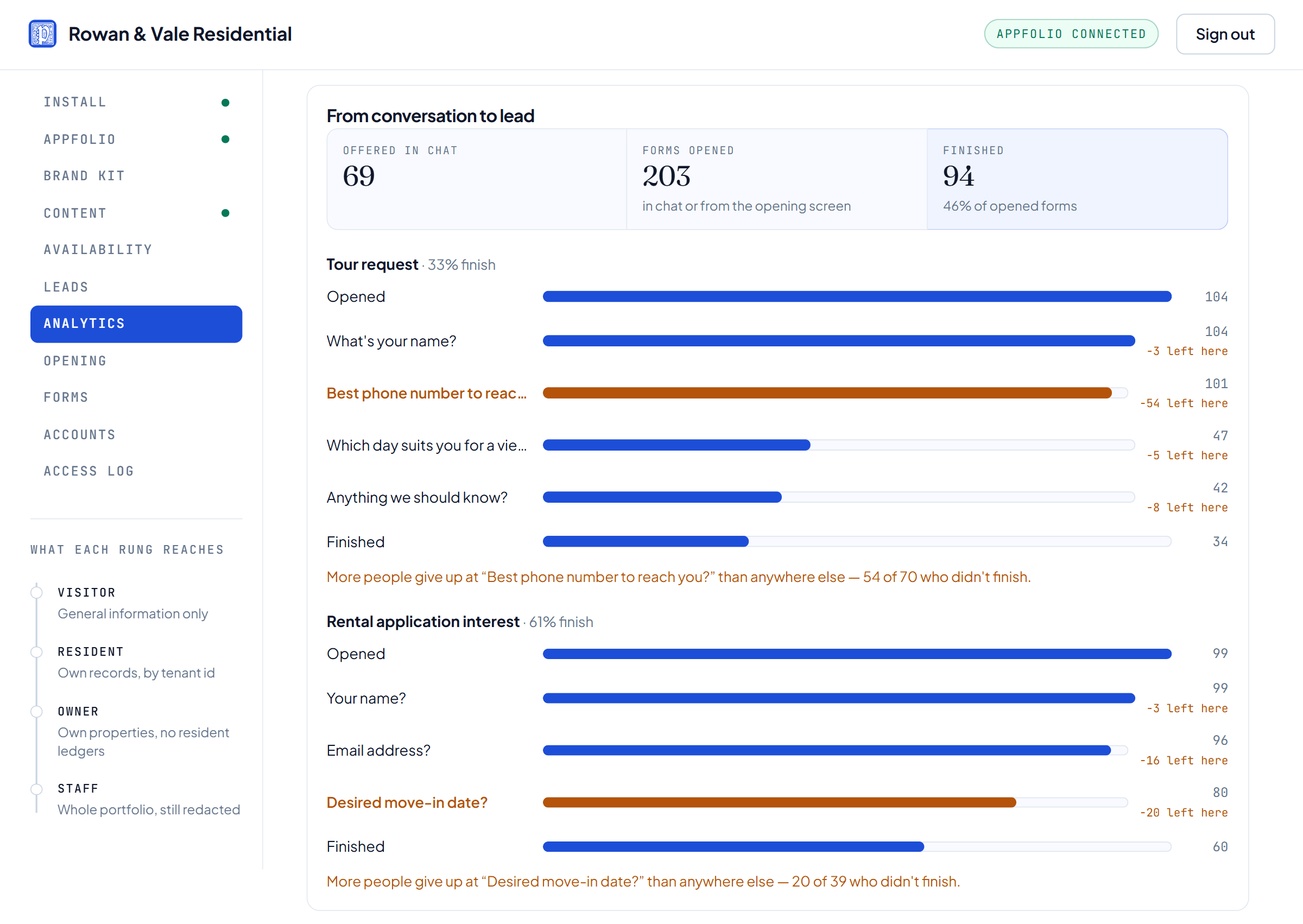
Further down, every form is broken out step by step: how many people
reached each question, how many gave up on it, and which one loses the
most. Visitors who were ready to act but left without their details are
listed too, and the ones who wrote in by email can be answered in a
click.
Topics and conversation counts are on every plan.
Unanswered questions and the lead funnel come with Growth and Pro.
Access log
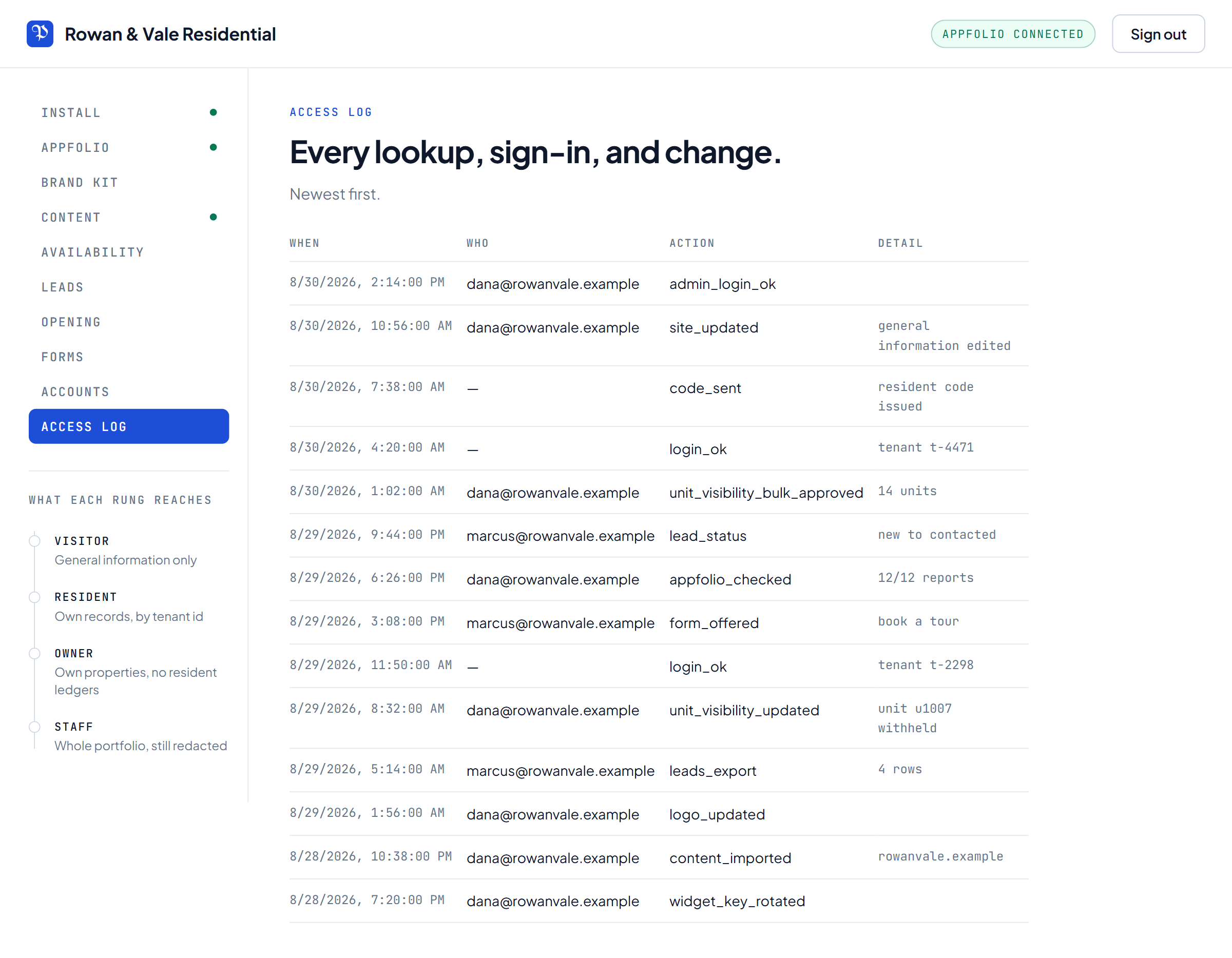
Every lookup, sign-in and change.
Who signed in, what was edited, which units were published or withheld,
when a resident code was issued, and when the AppFolio connection was
last checked. Resident sign-ins are recorded against a tenant id rather
than a name.
It is here so that who changed this and when was that record
read have answers that do not depend on anybody's memory.
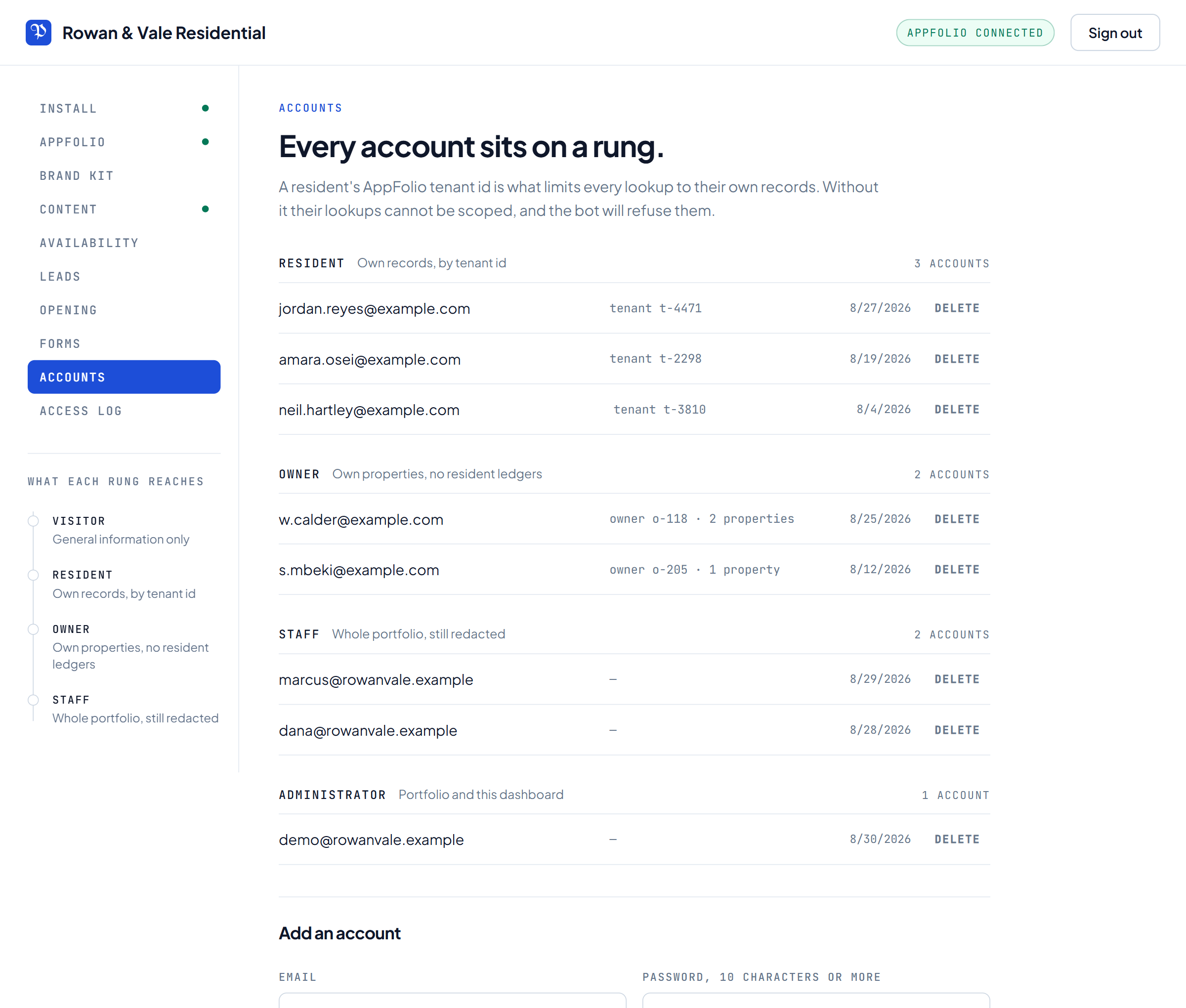
This is the screen that answers the obvious question about the rule
below it: how does Porter know that the person typing is a resident?
Because somebody here said so, and attached the AppFolio id that scopes
them.
A resident's tenant id is what limits every lookup to their own records.
Without it their lookups cannot be scoped at all, and the assistant
refuses them rather than guessing.
The assistant answers as whoever it is talking to, and never above that.
This ladder sits in the dashboard's sidebar on every single screen — you
can see it in the left of every screenshot above — because it is the rule
the rest of the product hangs off.
The Accounts screen adds a fifth row, administrator. That one is a
dashboard login rather than an audience the assistant ever answers as.
Visitor
General information only
Resident
Own records, by tenant id
Owner
Own properties, no resident ledgers
Staff
Whole portfolio, still redacted
Try it against your own data.
Connect a read-only key, approve a couple of units, and ask it something.